 Skip to content
Printer data guide
Your printer keeps a copy.
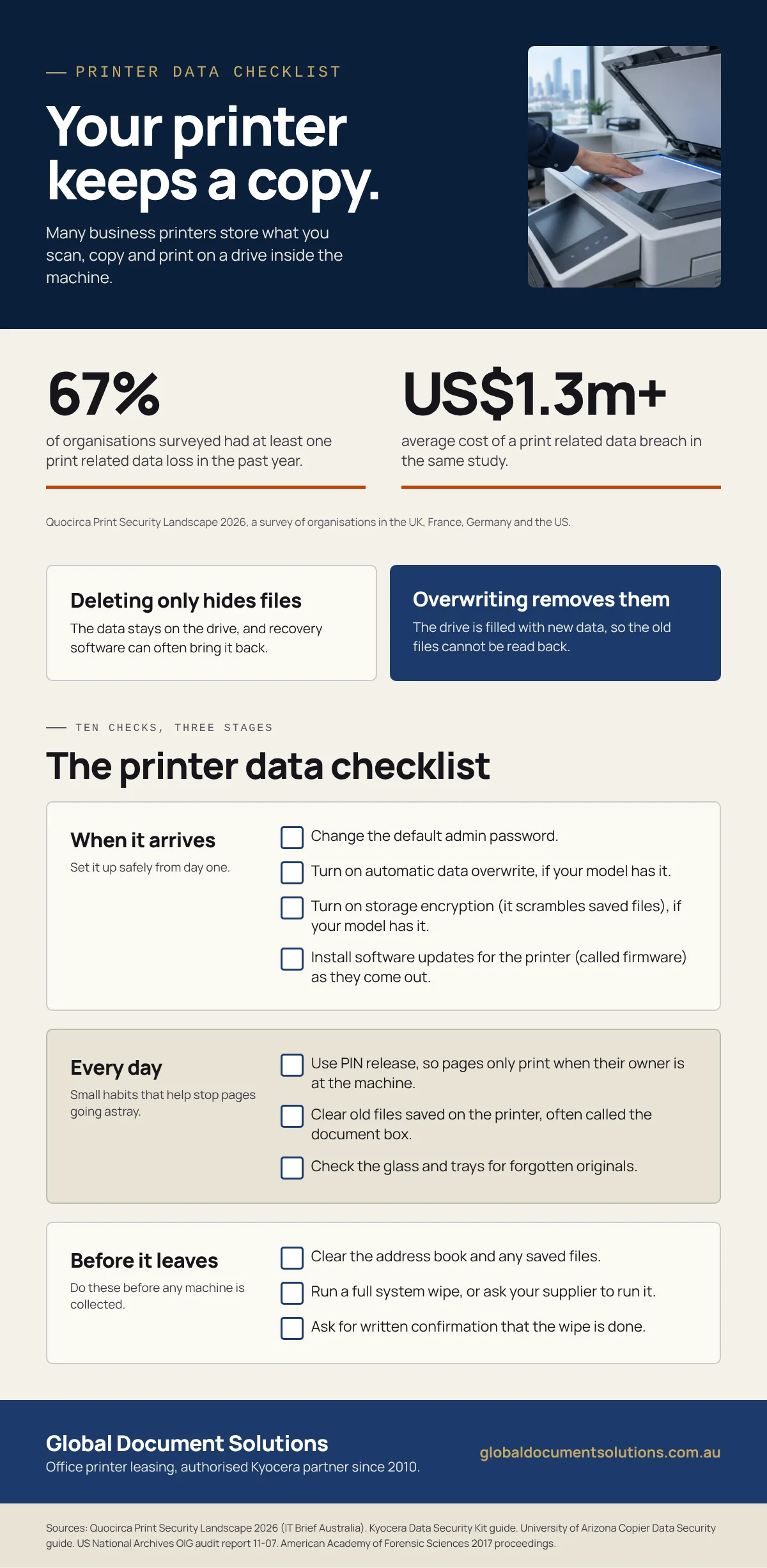
Many business printers store what you scan, copy and print on a drive inside the machine.
Here is what is kept, and the ten checks that clear it before the printer leaves your office.
From GDS, an authorised Kyocera partner since 2010.
What cybercrime costs Australian businesses
average cost per cybercrime report for an Australian small business.
average for a medium business, up 45% in one year.
Source: Australian Signals Directorate, Annual Cyber Threat Report, October 2026, based on costs reported by Australian businesses.
What your printer or photocopier keeps
A modern multifunction printer is a computer with a scanner attached.
Many models keep data on internal storage until it is written over.
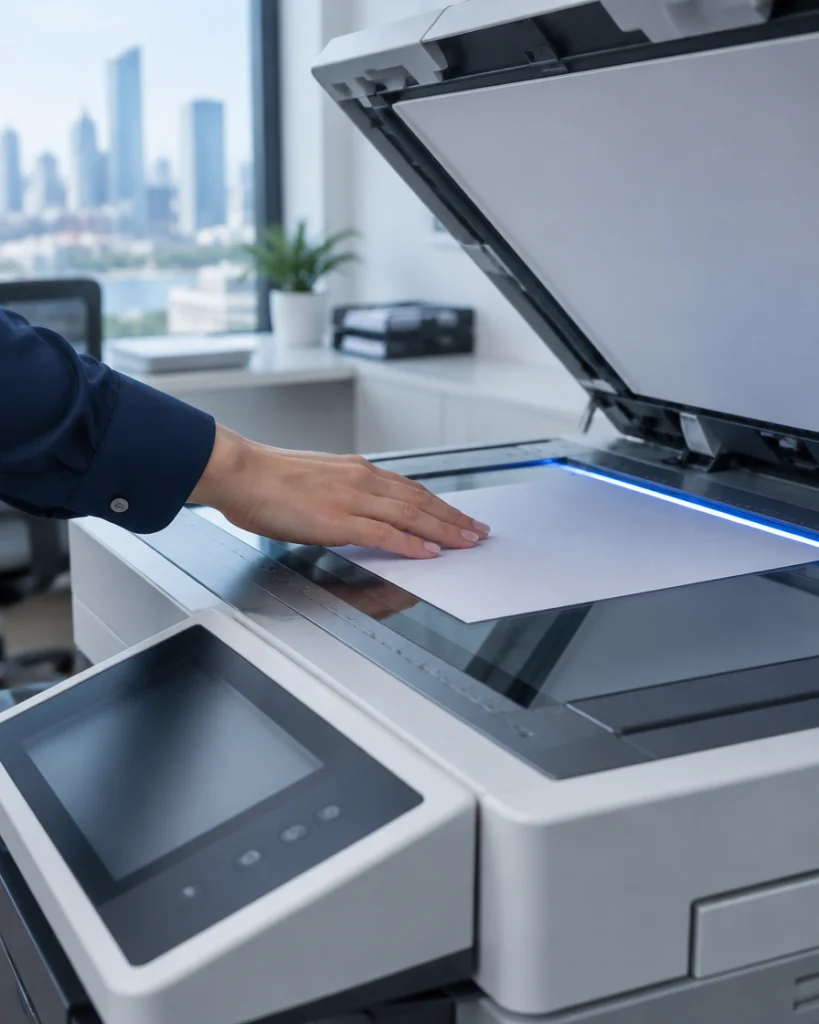
Scanned documents
Images of every page scanned to email or to a folder.
Copies
Many machines scan a page once, then print every copy from the saved file.
Print jobs
Files sent from staff computers, held while they print.
Address book
Saved email addresses and fax numbers.
Stored documents
Files staff save on the machine to reprint later.
Deleting is not erasing
Deleting a file hides it, but the data stays on the drive until it is written over.
Deleting only hides the files
The machine stops showing them, but the data stays on the drive.
Recovery software can often bring it back.
Overwriting removes them
The drive is filled with new data, so the old files cannot be read back.
Many business printers offer this as a built in setting or an add on kit.
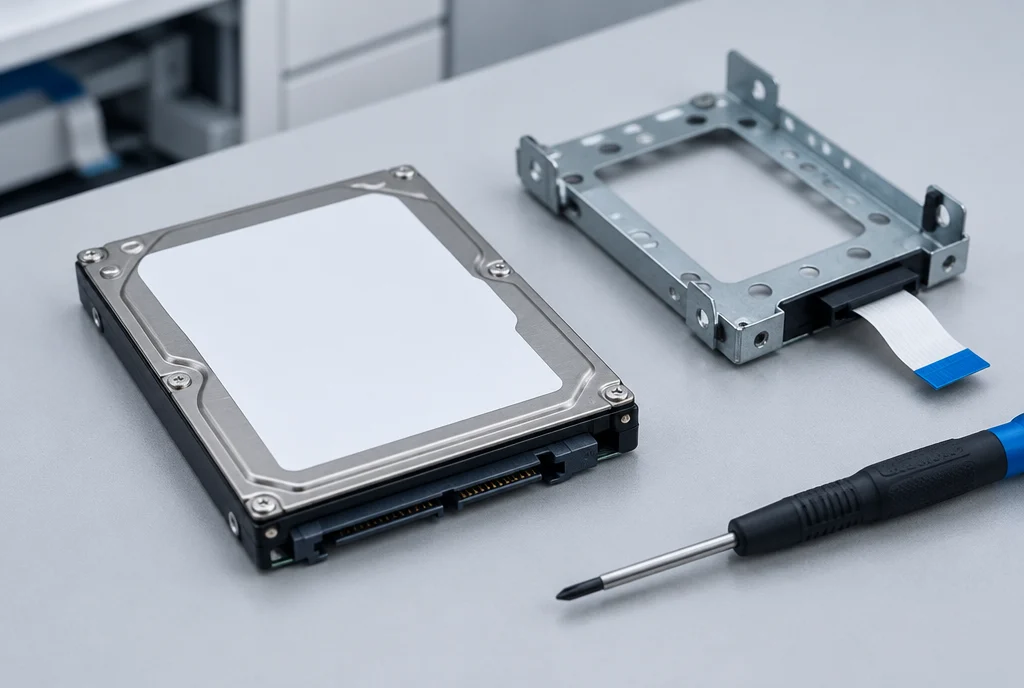
Australian government guidance agrees: the Australian Signals Directorate’s Information Security Manual sets out how to clean printers and multifunction devices before they are disposed of.
It also says to check the scanner glass for any text or images left behind.
Ten checks, three stages
The printer data checklist
Ten checks across the life of the machine.
Many are a single setting in the printer’s menu.
checks ticked
When it arrives
Set it up safely from day one.
On a Kyocera?
Every day
Small habits that help stop pages going astray.
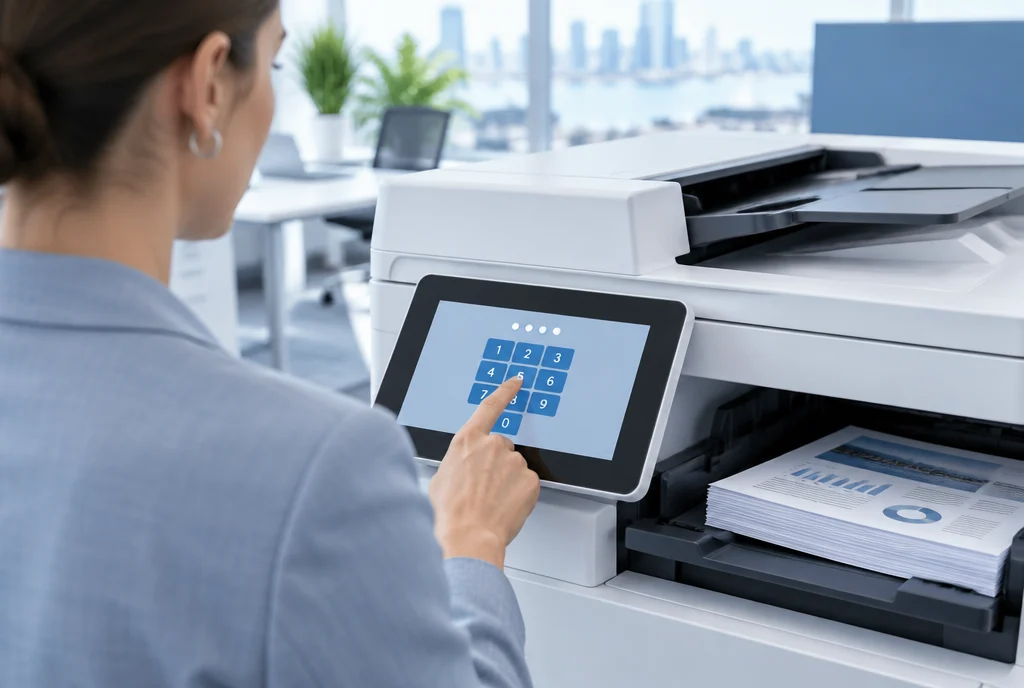
Before it leaves
Do these before any machine is collected.
Not sure your model has data overwrite?
Call 1300 873 460 with the model number.
Three questions for your supplier
Ask them before you commit to a new machine, and again before the old one is collected.
For release settings and scan logins, see the print security questions IT teams ask.
- Does this machine store data, and is that storage encrypted?
- Who wipes the storage when the machine is collected, and how?
- Will I get written confirmation once the wipe is done?
Choosing your next office printer?
Ask GDS which models have data overwrite and encryption built in.
GDS has leased printers to over 500 Australian businesses and has been an authorised Kyocera partner since 2010, with 150+ five star Google reviews.
No auto renewal on GDS leases.