
 Skip to content
Kyocera TASKalfa 3554ci Troubleshooting When It Stops Printing
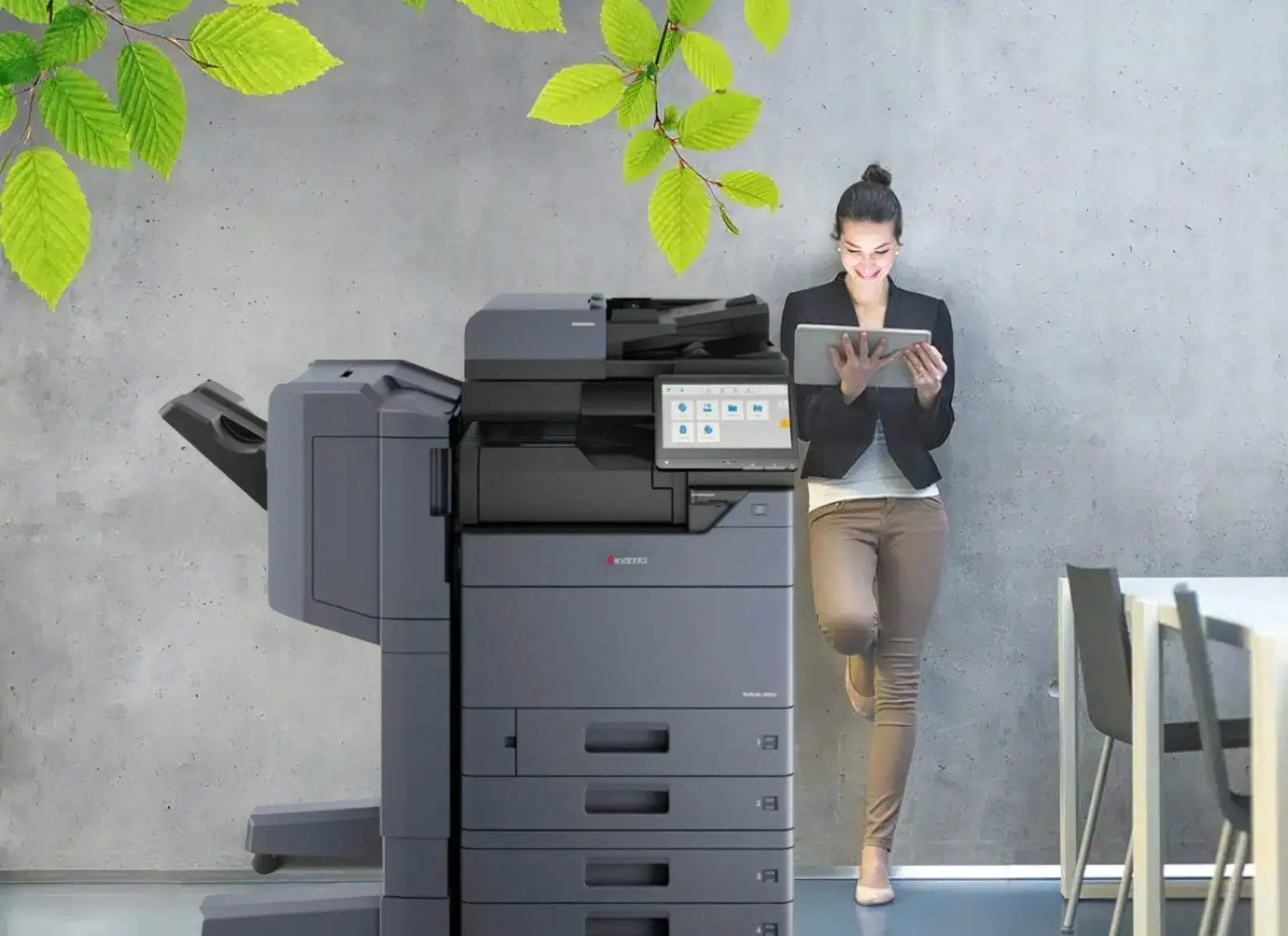
Five Things That Stop a 3554ci Printing
When a TASKalfa 3554ci will not print, it has almost always hit one of five faults: a paper jam, a print quality problem, a dropped network connection, a scanner error, or a driver or print spooler that has stalled, and every one of them clears from the panel or your own computer.
Take them in order.
Work Down the List Until Yours Clears
Each fix below takes a few minutes and none of them needs a technician on site.
Start at the top, because a jam left in the paper path will keep throwing errors that look like something else entirely.
If the machine is still dead after the last section, the fault is hardware and it needs a technician.
Price a replacement with servicing included
Who to ring if none of this works
Cyrus Dickie, an industry veteran with 16 years of experience, is your go to expert for Kyocera troubleshooting and printer solutions.
Contact Cyrus Dickie and the Global Document Solutions team for expert Kyocera troubleshooting.
Swift Solutions to Common Kyocera Taskalfa 3554ci Printing Hurdles
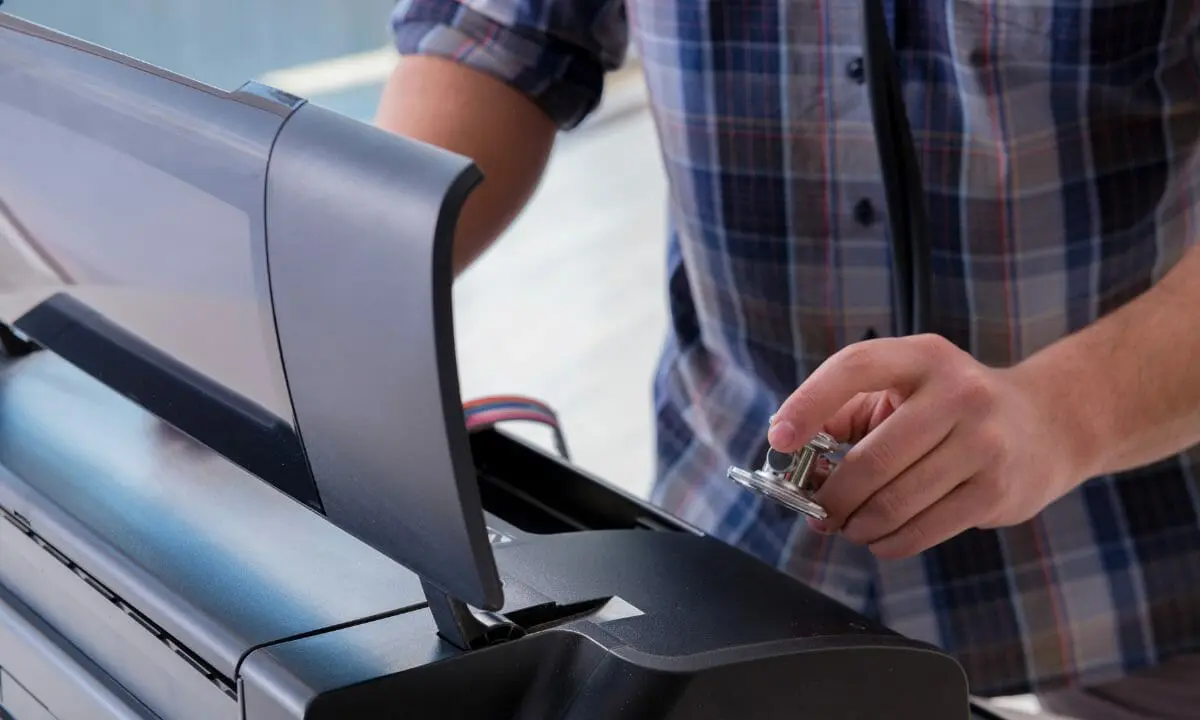
Clearing a stuck print spooler
Understanding Print Spooler Issues
Troubleshooting Steps
Preventive Measures
Get a written quote on a serviced replacement.
Advanced Troubleshooting Techniques

Still stuck?
There are a few more things to try beyond the fixes above.
Restarting both the printer and the computer
Restarting both is a quick remedy for many issues, restoring normal operation and clearing temporary glitches.
Firmware Upgrade
Check for updates for the Taskalfa 3554ci and install as instructed.
Don’t forget to update the Twain driver too.
Regular Cleaning and Maintenance
Prevent frequent problems with routine upkeep, like checking your network settings or going into sleep mode.
request a printer lease quote today for the Kyocera Taskalfa 3554ci.
Once the machine is back on its feet, set Sleep Mode so it is not sitting at full power between jobs.
Request your printer lease quote today.
Operation Guide for the Kyocera Taskalfa 3554ci
The operation guide covers twain scanning, private print options, proof and hold, and form overlay.
Benefits
- Clear Guidance
- Enhanced Security
- Time saving Features
- Versatile Functionality
Contact us for high quality, trouble free printing.
Still paying for Kyocera repairs?
Every Global Document Solutions lease puts toner, parts, on site service and call outs into one monthly figure.
A fault like this one is covered by your service agreement.
Plans start at $160 a month (plus GST), with nothing to pay up front and no auto renewal.
No obligation.
5.0 on Google from 150+ reviews.
Need a technician on site?
You will find the same Kyocera agreement behind leasing a business printer in Brisbane, Melbourne based printer leasing, printer leasing for Perth offices, office printer leasing on the Gold Coast and photocopier hire for Sydney teams.


Eleven quick answers on the 3554ci
How can I troubleshoot my Taskalfa 3554ci printer?
Get your set monthly price
Tell us your monthly page count and we send back one written figure, from $160 a month (plus GST).
Toner, parts, servicing and call outs all sit inside it.
The only thing you ever buy on top is paper.
How do I skip a blank page when printing on the Taskalfa 3554ci?
A: To skip a blank page when printing, go to the print settings and enable the “Skip Blank Page” option.
This will prevent the printer from printing any blank pages.
How do I scan a document using the Taskalfa 3554ci?
A: To scan a document using Taskalfa 3554ci, you can use the scan function on the printer’s operation panel or install the appropriate scanning software on your computer.
Can I fax documents using the Taskalfa 3554ci?
A: Yes, the Taskalfa 3554ci supports faxing.
How do I install the printer driver for the Taskalfa 3554ci?
A: To install the printer driver for Taskalfa 3554ci, you can download the driver software from the official Kyocera website and follow the installation instructions provided.
Is the Taskalfa 3554ci compatible with Windows 10?
A: Yes, the Taskalfa 3554ci is compatible with many operating systems.
The Taskalfa 3554ci can be connected to a Windows 10 computer, so you can print and scan.
What is duplex printing?
A: Duplex printing is a feature that allows you to print on both sides of the paper automatically.
Taskalfa 3554ci supports duplex printing and the Quick Copy feature, which save paper and reduce printing costs.
Can the Taskalfa 3554ci print documents in A4 size?
A: Yes, Taskalfa 3554ci supports printing of documents in A4 size loaded in the paper tray.
How do I print a booklet using the Taskalfa 3554ci?
A: To print a booklet using Taskalfa 3554ci, you can select the booklet printing option in the print settings.
The printer will automatically arrange the pages in the correct order for booklet printing.
Can the Taskalfa 3554ci create encrypted PDF files?
A: Yes, Taskalfa 3554ci supports the creation of encrypted PDF files, which can help to secure sensitive information and control access to the document.
Can the Taskalfa 3554ci print documents in A3 size?
A: Yes, Taskalfa 3554ci supports printing of documents in A3 size.
You can ask for a printer lease quote on a current Kyocera below.
Request a printer lease quote in writing.
Still not printing, what to do next
Act now and reach out to Global Document Solutions – your dedicated partner in Kyocera Taskalfa 3554ci troubleshooting.
Ready for your own number?
Tell us your monthly page count and we send back one written figure, from $160 a month (plus GST).
Toner, parts, servicing and call outs all sit inside it.
The only thing you ever buy on top is paper.


#1
Our mission is to be the first company organisations think of when they need modern print and document solutions
15 Years of Continuous Service to my business without any issues.
Cyrus is a legend!
Marvin Reck
Found Cyrus and his team to be very professional, prompt and cost effective.
Best in the business.
Highly recommended.
Matthew Dean
Have been using GDS for the supply and maintenance of our office printers for over 5 years now.
Customer service level is consistently high, with an excellent reaction and response rate.
Marina Denaro
Related Post


Why Work with Us?
With a fully trained and skilled team of experts, our team looks after each client from the first quote to the end of the lease.
Besides offering high end equipment, we also deliver exceptional service in smart financing on software and hardware, remote management and account management.
Contact Global Document Solutions to get the perfect combination of efficiency and innovation in document printing.
To buy a Kyocera printer, consult with our friendly agents today.